Handling file uploads in Vue + API is a tricky issue, and there aren’t many examples, so we decided to provide our own version, with two demo projects.
In this article, we will provide the sample code and the Github repository at the very end.
Imagine a scenario where the registration form has a field avatar.
Here’s how it will work – The Save button will make a POST request to the API and return the new user’s object, including the avatar.
Front-end code: Vue.js
On the front-end side, this is done with a Vue component Register.vue.
Notice: In this article I will not discuss the basic configuration of Vue – routing and recording components. At the end of the article you will see a link to the repository with the front-end and back-end parts, so you can see how it all ties together.
src/views/Register.vue: (see comments in the code, in bold + uppercase)
<template>
  <div class="container">
    <div class="row justify-content-center">
      <div class="col-md-8">
        <div class="card">
          <div class="card-header">Register</div>

          <div class="card-body">

            <!-- THIS SECTION IS FOR ERRORS THAT WOULD COME FROM API -->
            <div v-if="errors">
              <div v-for="error in errors" class="alert alert-danger">{{ error }}</div>
            </div>

            <!-- FORM WITH v-if WILL BE SHOWN BUT THEN HIDDEN AFTER SUCCESS SUBMIT -->
            <form v-if="showForm">

              <div class="form-group row">
                <label for="name" class="col-md-4 col-form-label text-md-right">Name</label>

                <div class="col-md-6">
                  <!-- NOTICE v-model="formData.name" - THAT'S HOW IT GETS ATTACHED TO THE FIELD -->
                  <input v-model="formData.name" id="name" type="text" class="form-control" name="name" required autocomplete="name" autofocus>
                </div>
              </div>

              <div class="form-group row">
                <label for="email" class="col-md-4 col-form-label text-md-right">Email</label>

                <div class="col-md-6">
                  <input v-model="formData.email" id="email" type="email" class="form-control" name="email" required autocomplete="email">
                </div>
              </div>

              <div class="form-group row">
                <label for="password" class="col-md-4 col-form-label text-md-right">Password</label>

                <div class="col-md-6">
                  <input v-model="formData.password" id="password" type="password" class="form-control" name="password" required autocomplete="new-password">
                </div>
              </div>

              <div class="form-group row">
                <label for="password-confirm" class="col-md-4 col-form-label text-md-right">Confirm password</label>

                <div class="col-md-6">
                  <input v-model="formData.password_confirmation" id="password-confirm" type="password" class="form-control" name="password_confirmation" required autocomplete="new-password">
                </div>
              </div>

              <div class="form-group row">
                <label class="col-md-4 col-form-label text-md-right">Avatar</label>
                <div class="col-md-6">
                  <div class="custom-file">
                    <!-- MOST IMPORTANT - SEE "ref" AND "@change" PROPERTIES -->
                    <input type="file" class="custom-file-input" id="customFile"
                        ref="file" @change="handleFileObject()">
                    <label class="custom-file-label text-left" for="customFile">{{ avatarName }}</label>
                  </div>
                </div>
              </div>

              <div class="form-group row mb-0">
                <div class="col-md-6 offset-md-4">
                  <button @click.prevent="submit" type="submit" class="btn btn-primary" style="background: #42b983; border: #42b983;">
                    Register
                  </button>
                </div>
              </div>
            </form>

            <!-- THIS IS THE RESULT BLOCK - SHOWING USER DATA IN CASE OF SUCCESS -->
            <div v-if="user">
              <div class="alert alert-success">User created</div>
              <div>
                <img height="100px" width="auto" :src=" alt="">
              </div>
              <div>Name : {{ user.name }}</div>
              <div>Email : {{ user.email }}</div>
            </div>
          </div>
        </div>
      </div>
    </div>
  </div>
</template>

<script>

  import axios from 'axios'
  import _ from 'lodash'

  export default {
    data() {
      return {
        formData: {
          name: null,
          email: null,
          password: null,
          password_confirmation: null,
        },
        avatar: null,
        avatarName: null,
        showForm: true,
        user: null,
        errors: null,
      }
    },
    methods: {
      submit() {
        this.errors = null

        let formData = new FormData()
        <!-- WE APPEND THE AVATAR TO THE FORMDATA WE'RE GONNA POST -->
        formData.append('avatar', this.avatar)

        _.each(this.formData, (value, key) => {
          formData.append(key, value)
        })


        <!-- THE MOST IMPORTANT - API CALL, WITH multipart/form-data AND boundary HEADERS -->
        axios.post('/api/register', formData, {
            headers: {
              'Content-Type': "multipart/form-data; charset=utf-8; boundary=" + Math.random().toString().substr(2)
            }
          }
        ).then(response => {
          <!-- HIDING THE FORM AND SHOWING THE USER -->
          this.showForm = false
          this.user = response.data.data
        }).catch(err => {
          if (err.response.status === 422) {
            <!-- SHOWING THE ERRORS -->
            this.errors = []
            _.each(err.response.data.errors, error => {
              _.each(error, e => {
                this.errors.push(e)
              })
            })

          }
        });
      },
      <!-- WHENEVER THE FILE IS CHOSEN - IT'S ATTACHED TO this.avatar BY ref="file" -->
      handleFileObject() {
        this.avatar = this.$refs.file.files[0]
        this.avatarName = this.avatar.name
      }
    }

  }

</script>
Another important part is setting defaults for axios – somewhere in src/main.js:
axios.defaults.headers.common['X-Requested-With'] = 'XMLHttpRequest'
axios.defaults.baseURL = ' // Backend URL for API
Ok, now we publish the form to the API. What does it look like on the Laravel side?

Back-end code: Laravel
Registration is done via this route:
routes/api.php:
Route::post('/register', 'Api\V1\RegisterController@register');
And the Controller method is:
app/Http/Controllers/Api/V1/RegisterController.php:
namespace App\Http\Controllers\Api\V1;

use App\Http\Resources\UserResource;
use App\User;
use Illuminate\Http\Request;

class RegisterController
{

    public function register(Request $request)
    {
        $data = $request->validate([
            'avatar'   => ['image', 'dimensions:max_width=1000,max_height=1000'],
            'name'     => ['required', 'string'],
            'email'    => ['required', 'email'],
            'password' => ['required', 'confirmed'],
        ]);

        $file = $request->file('avatar');
        $name="/avatars/" . uniqid() . '.' . $file->extension();
        $file->storePubliclyAs('public', $name);
        $data['avatar'] = $name;

        $user = User::create($data);

        return new UserResource($user);
    }

}
I bolded the parts related to downloading the avatar. You can learn more about uploading Laravel files on this official documentation page.
We assume that users.avatar is just a VARCHAR field that contains the file path, like avatars/some_file_name.jpg:

The file itself will be stored on a public disk, configured in config/filesystems.php:
'disks' => [
    // ...

    'public' => [
        'driver' => 'local',
        'root' => storage_path('app/public'),
        'url' => env('APP_URL').'/storage',
        'visibility' => 'public',
    ],
The return result of the API call is described in a file
app/Http/Resources/UserResource.php:
class UserResource extends JsonResource
{
    public function toArray($request)
    {
        return array_merge(parent::toArray($request), [
            'avatar_url' => env('APP_URL') . $this->avatar
        ]);
    }
}
As you can see, we are returning the full URL of the avatar to the front-end. So don’t forget to specify your APP_URL in the .env file.
So the API returns this:
{
  "data": {
    "avatar": "/avatars/5ea54de92ecb4.png",
    "name": "Felicia Sims",
    "email": "jiquzugiz@yahoo.com",
    "updated_at": "2020-04-26 09:01:29",
    "created_at": "2020-04-26 09:01:29",
    "id": 2,
    "avatar_url": "
  }
}
Last thing: to make everything work we also need to add HandleCors course in progress app/Http/Kernel.php:
use Fruitcake\Cors\HandleCors;

class Kernel extends HttpKernel
{
    protected $middleware = [
        // ...
        HandleCors::class,
    ];
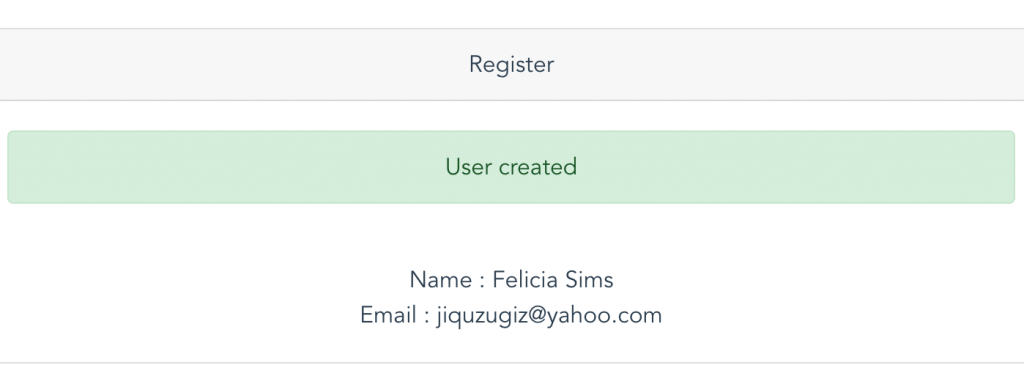
And here is the visual result after filling out the form:
Here is the full project repository: https://github.com/LaravelDaily/Laravel-Vue-API-File-Upload
In particular, the commit regarding this registration page:
Bonus: second example – Using the Spatie Laravel media library
Inside the repository you will find another case: uploading the thumbnail image of the article. For this we use the Spatie Medialibrary package.
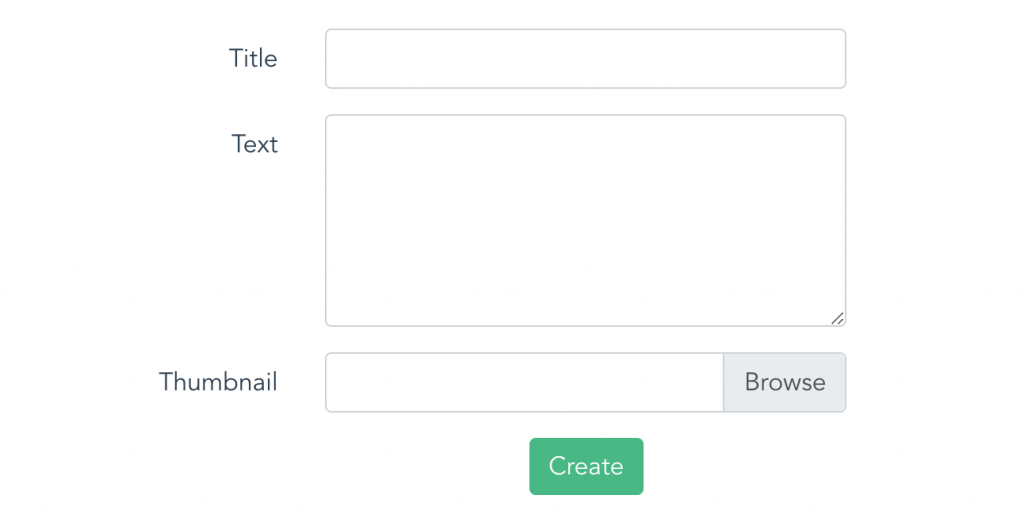
The front-end code has a really similar structure – here is src/views/Article.view:
<form v-if="showForm">

  <!-- ... other fields .. -->

  <div class="form-group row">
    <label class="col-md-4 col-form-label text-md-right">Thumbnail</label>
    <div class="col-md-6">
      <div class="custom-file">
        <input type="file" class="custom-file-input" id="customFile" ref="file" @change="handleFileObject()">
        <label class="custom-file-label text-left" for="customFile">{{ thumbName }}</label>
      </div>
    </div>
  </div>

  <div class="form-group row mb-0">
    <div class="col-md-6 offset-md-4">
      <button @click.prevent="submit" type="submit" class="btn btn-primary" style="background: #42b983; border: #42b983;">
        Create
      </button>
    </div>
  </div>
</form>
<div v-if="article">
  <div class="alert alert-success">Article created</div>
  <div>
    <img height="100px" width="auto" :src=" alt="">
  </div>
  <div>Title : {{ article.title }}</div>
  <div>Content : {{ article.content }}</div>
</div>

<!-- ... -->

<script>

  import axios from 'axios'
  import _ from 'lodash'

  export default {
    data() {
      return {
        formData: {
          title: null,
          content: null,
        },
        thumbnail: null,
        thumbName: null,
        showForm: true,
        article: null,
        errors: null,
      }
    },
    methods: {
      submit() {
        this.errors = null

        let formData = new FormData()
        formData.append('thumbnail', this.thumbnail)

        _.each(this.formData, (value, key) => {
          formData.append(key, value)
        })

        axios.post('/api/articles', formData, {
            headers: {
              'Content-Type': "multipart/form-data; charset=utf-8; boundary=" + Math.random().toString().substr(2)
            }
          }
        ).then(response => {
          this.showForm = false
          this.article = response.data.data
        }).catch(err => {
          if (err.response.status === 422) {
            this.errors = []
            _.each(err.response.data.errors, error => {
              _.each(error, e => {
                this.errors.push(e)
              })
            })

          }
        });
      },
      handleFileObject() {
        this.thumbnail = this.$refs.file.files[0]
        this.thumbName = this.thumbnail.name
      }
    }

  }

</script>
The backend adds a default installation like composer requires space/laravel-medialibraryand the API controller looks like this.
public function store(StoreArticleRequest $request)
{
    /** @var Article $article */
    $article = Article::create($request->validated());

    if ($request->file('thumbnail', false)) {
        $article->addMedia($request->file('thumbnail'))->toMediaCollection('thumbnail');
    }

    $article = $article->fresh();

    return new ArticleResource($article);
}
You can see the full code for this release, in this commit repository: