We’re starting to invest more in demo projects on how to customize elements in Laravel. In this little lesson – how to add user name field to users table and allow users to log in with their username.
We’ll go a few steps further and add these features as well:
- Register by entering your email and username, both required
- Reset password by entering username or email
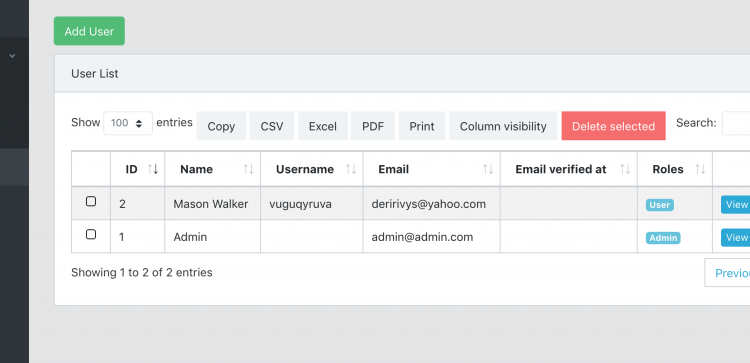
- As part of adminpanel user management, administrators will be able to add/modify this username field.
Step 1. Default QuickAdminPanel on CoreUI Theme
Our QuickAdminPanel builder helps with demo projects, as it generates the main admin panel and then we can write custom code.
Note: Our demo project will be based on QuickAdminPanel, but this is not necessary. You can follow the same tutorial and start with Laravel Auth by default.
In this case, we are generating an admin panel based on the CoreUI admin panel theme, and the only module we need to install for this demo is user registration.
In the repository, here is the first commit of this generated code, everything was automatic, without any manual coding.
Step 2. Add Username Field to Registration
We now need to make this form work:
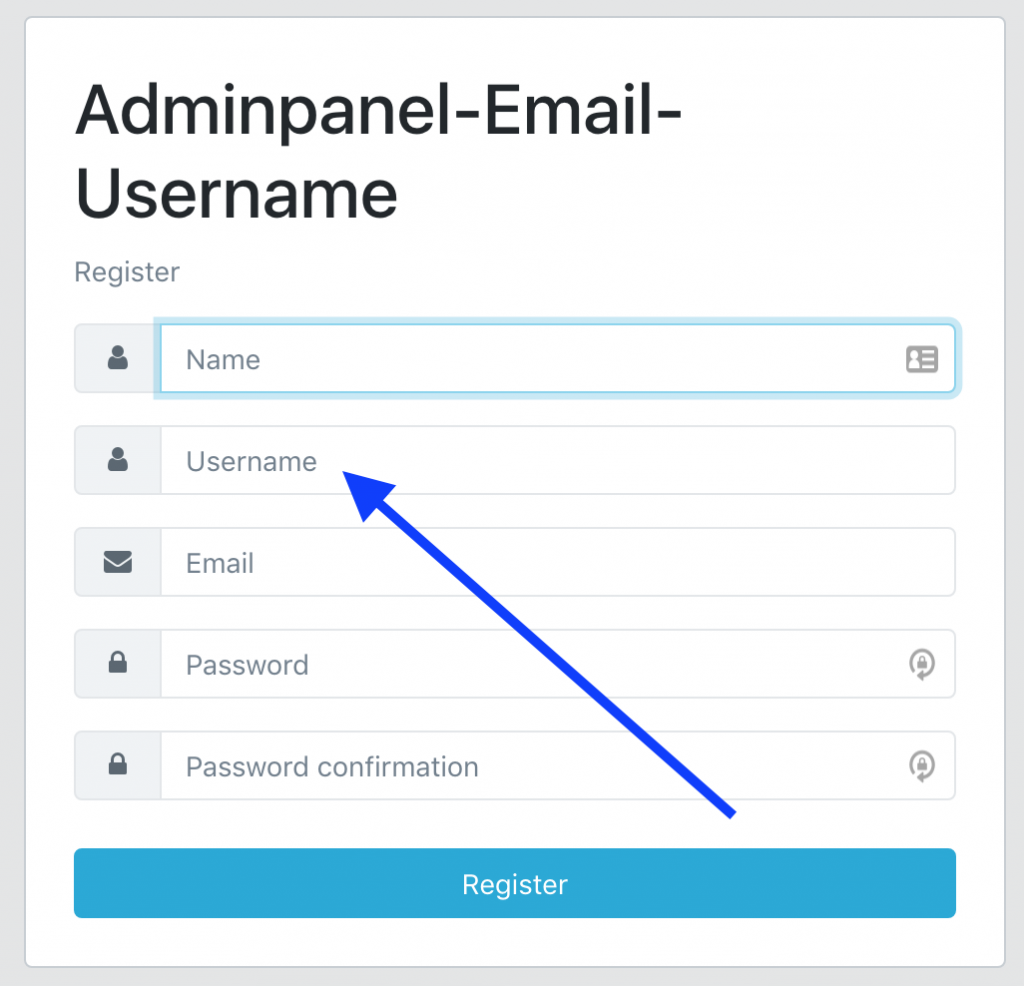
You must first add users.username domain in migration:
public function up()
{
    Schema::table('users', function (Blueprint $table) {
        $table->string('username')->nullable();
    });
}
Then add it to $fillable table in app/User.php model:
class User extends Authenticatable
{

    // ...

    protected $fillable = [
        'name',
        'email',
        'password',
        'created_at',
        'updated_at',
        'deleted_at',
        'remember_token',
        'email_verified_at',
        'username',
    ];
Then, the registration form located in resources/views/auth/register.blade.php – we just add a new “div” block:
...
</div>

<div class="input-group mb-3">
    <div class="input-group-prepend">
        <span class="input-group-text">
            <i class="fa fa-user fa-fw"></i>
        </span>
    </div>
    <input type="text" name="username"
    	class="form-control{{ $errors->has('username') ? ' is-invalid' : '' }}" r
    	equired placeholder="{{ trans('global.login_username') }}"
    	value="{{ old('username', null) }}">
    @if($errors->has('username'))
        <div class="invalid-feedback">
            {{ $errors->first('username') }}
        </div>
    @endif
</div>

<div class="input-group mb-3">
...
Finally, in this step we need to save the username – in app/Http/Controllers/Auth/RegisterController.phpwe add this field both during validation and during user creation:
class RegisterController extends Controller
{
    protected function validator(array $data)
    {
        return Validator::make($data, [
            'name' => ['required', 'string', 'max:255'],
            'username' => ['required', 'string', 'max:255'],
            'email' => ['required', 'string', 'email', 'max:255', 'unique:users'],
            'password' => ['required', 'string', 'min:8', 'confirmed'],
        ]);
    }

    protected function create(array $data)
    {
        return User::create([
            'name' => $data['name'],
            'username' => $data['username'],
            'email' => $data['email'],
            'password' => Hash::make($data['password']),
        ]);
    }
}
The full commit of this step with some additional files can be found here on Github.
Step 3. Log in with your email or username
Now let’s move on to the login form. The only thing we need to do in the form to resources/views/auth/login.blade.php is to change the placeholder of the email field from “Email” to “Email or Username”, and also change the type of input type = “email” has input type = “text”:

And we need to change the email verification logic app/Http/Controllers/Auth/LoginController.php. For this, we add a new method credentials()which originally comes from the AuthenticatesUsers trait in Laravel core, we simply replace it in our Controller:
/**
 * Get the needed authorization credentials from the request.
 *
 * @param  \Illuminate\Http\Request  $request
 * @return array
 */
protected function credentials(Request $request)
{
    $field = filter_var($request->get($this->username()), FILTER_VALIDATE_EMAIL)
        ? $this->username()
        : 'username';
    return [
        $field => $request->get($this->username()),
        'password' => $request->password,
    ];
}
This may seem quite vague, but the logic is this: if the email variable passed in is an actual email address, then we check the “email” field as the identifier. Otherwise, it will be the “username” field.
That’s it, connection completed! The code for this commit is here.
Step 4. Reset Password by Username
The final step is to allow users to enter their username in the password reset form.
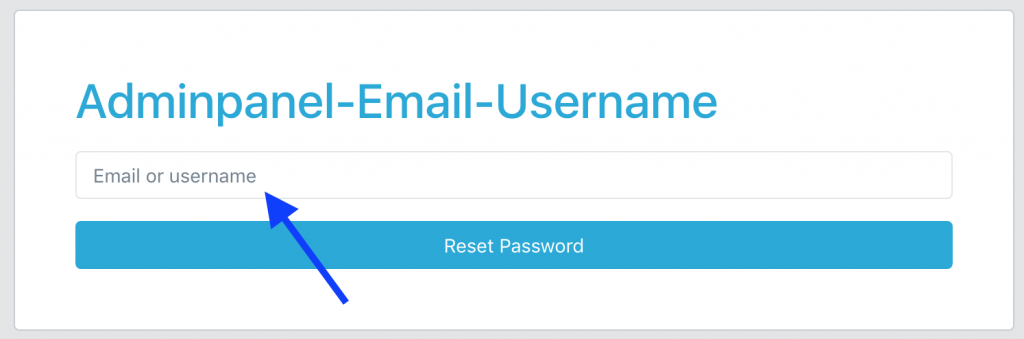
This one is really similar to the previous step.
Again, in the views we need to change input type = “email” has input type = “text” in two files:
– resources/views/auth/passwords/email.blade.php
– resources/views/auth/passwords/reset.blade.php
And we also need to override the field name logic in app/Http/Controllers/Auth/ForgotPasswordController.php:
/**
 * Get the needed authentication credentials from the request.
 *
 * @param  \Illuminate\Http\Request  $request
 * @return array
 */
protected function credentials(Request $request)
{
    $field = filter_var($request->get('email'), FILTER_VALIDATE_EMAIL)
        ? 'email'
        : 'username';
    return [
        $field => $request->get('email')
    ];
}
And that’s it: the user will be found by their username and will always receive an email at users.email address.
Validation code: click here
There you have it, our complete demo project can be found in this repository.